

First-time login to admin-panel
No username or password needed. Just click the link in your email.
What you’ll receive
After your machine is provisioned, you’ll get a setup email with four links:
| Link | Goes to |
|---|---|
| Admin Panel | Your management dashboard (this page is about logging into this one) |
| Rose / OpenClaw UI | Rose’s chat interface |
| Ada / OpenClaw UI | Ada’s chat interface |
| Vi / Hermes UI | Vi’s chat interface |
Link format:
https://{your-hostname-prefix}-00.realvco.com/?token=xxxxxxxxHow to log in
- Open the email, find the Admin Panel link
- Click it — your browser auto-validates the token, sets a cookie, redirects to the dashboard
Total time: 1-2 seconds. No typing.
What you’ll see after login
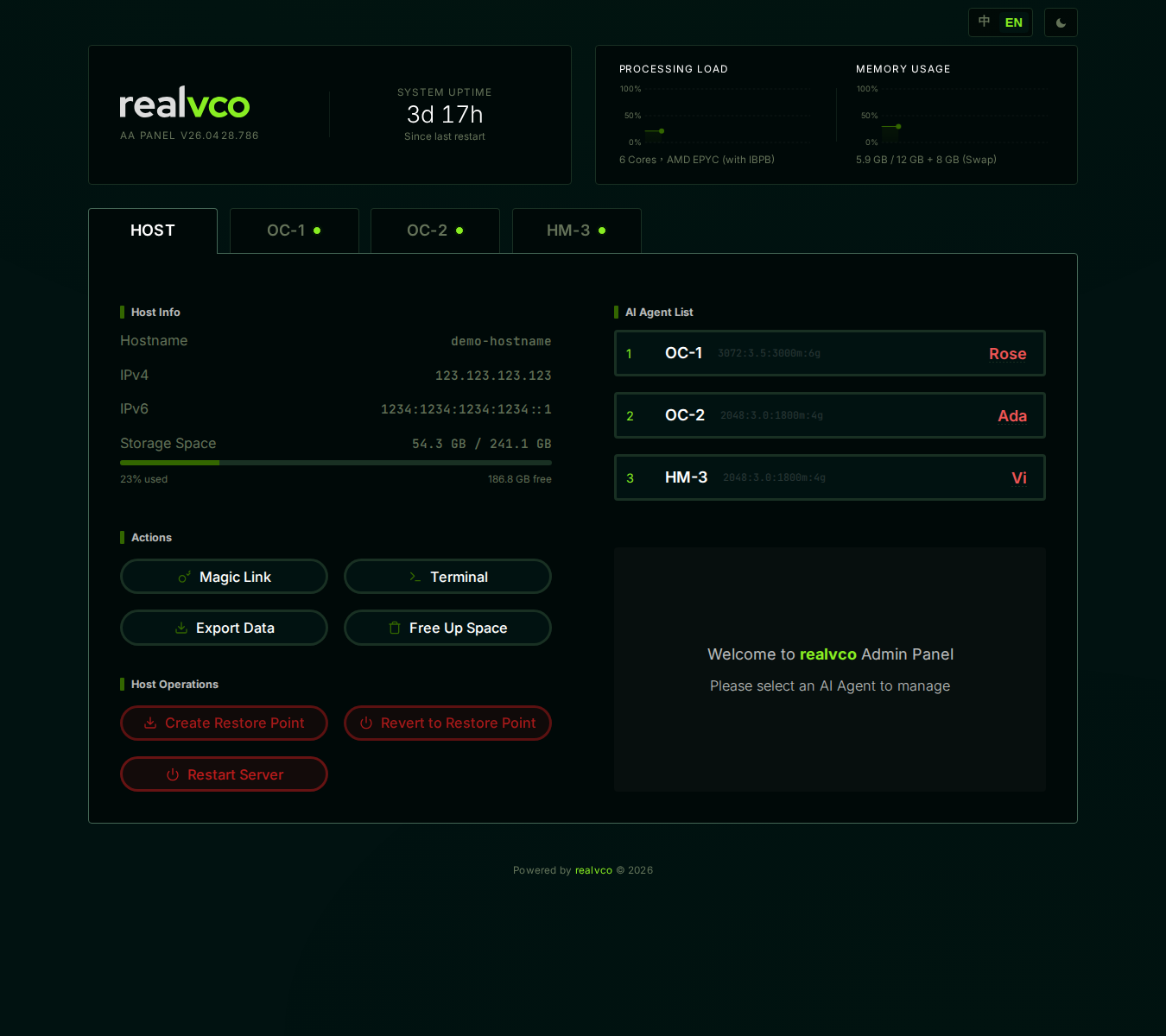
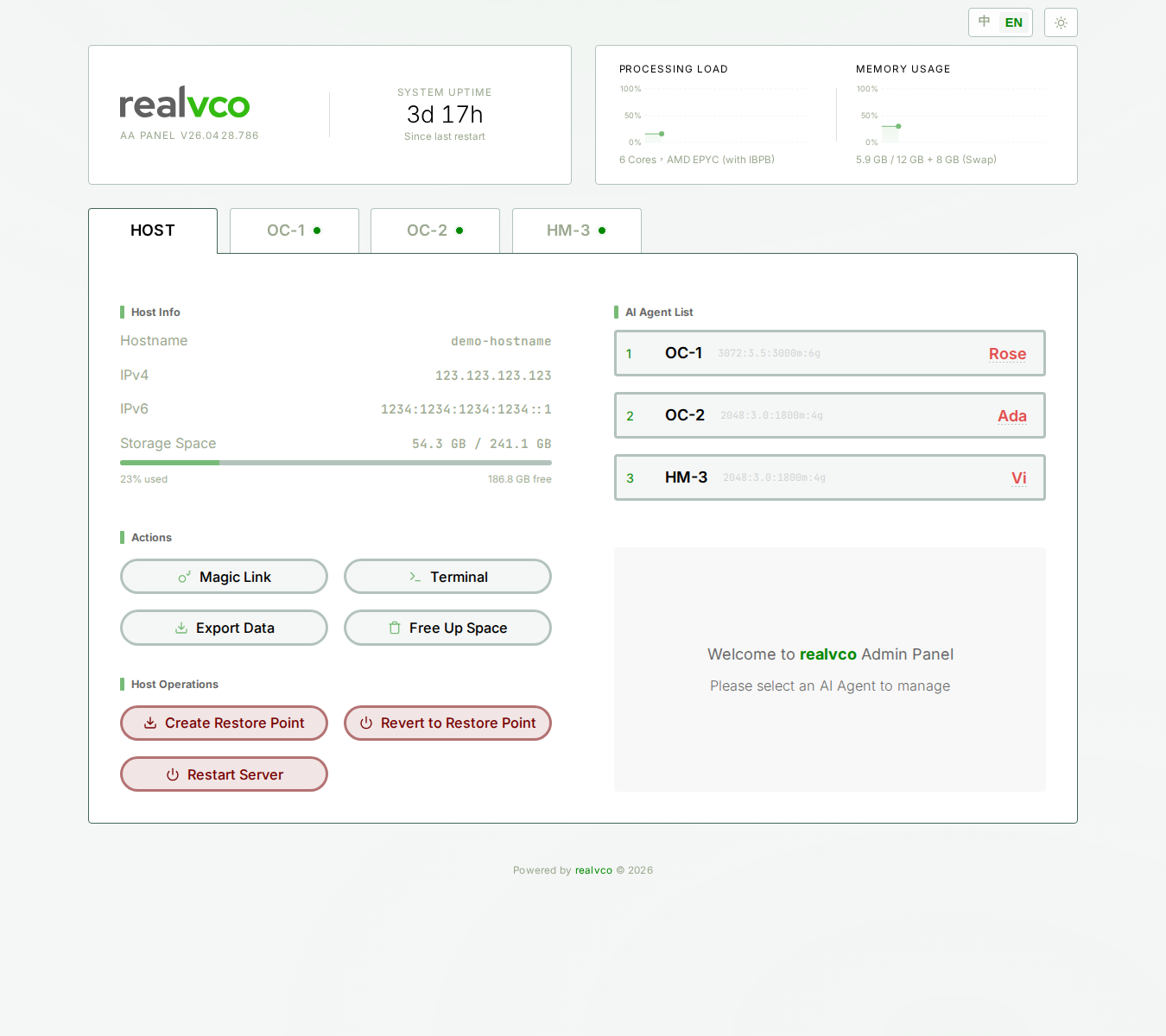
Top of the screen:
- realvco AA PANEL logo + version
- SYSTEM UPTIME (how long since last restart)
- PROCESSING LOAD + MEMORY USAGE live charts
Middle: 4 tabs HOST / OC-1 / OC-2 / HM-3, defaults to HOST.
30-day cookie — no need to re-verify
After your first login, your browser remembers you for 30 days (httpOnly Cookie). You can bookmark the page and just open it directly for the next 30 days.
If 30+ days pass without login, the cookie expires. Next time you’ll see a Sign In page. Then:
- Open the original setup email
- Click the Admin Panel link again
- Cookie refreshes, another 30 days
New device or browser
Each device / browser needs to first click an email link (cookie is browser-specific). Same account can be logged in on multiple devices simultaneously.
If you can’t find the setup email: see Recover Magic Token.
If clicking the link shows the Sign In page
Token has expired. Possible reasons:
- Token used too many times: each new Magic Link invalidates older ones
- Link is too old: tokens have a TTL set when sent
What to do:
- Try another Magic Link (e.g. the OpenClaw UI link — host token is shared)
- Still failing → on the admin-panel main screen, generate a new Magic Link (if you’re already logged in elsewhere)
- All failed → submit a support ticket with your order number, customer service will resend the setup email
Related
- Magic Token mechanism — How it works under the hood
- Dashboard overview — What you see right after login
- Generate and share Magic Link — For family / coworkers