

Actions section
The second section in the HOST tab’s left column. 4 buttons for 4 common host-level operations.
Where to find
HOST tab → middle-left → Actions section
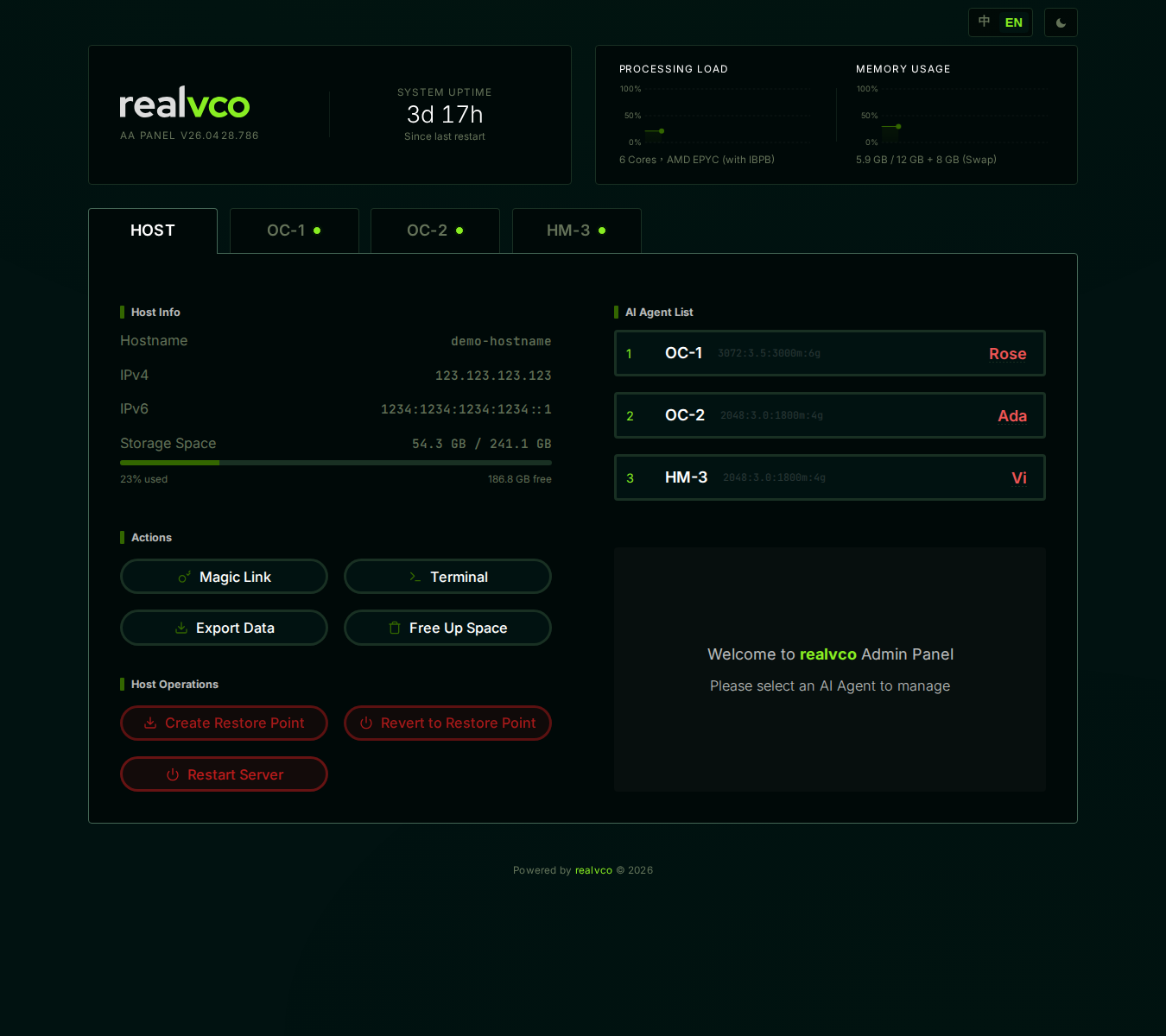
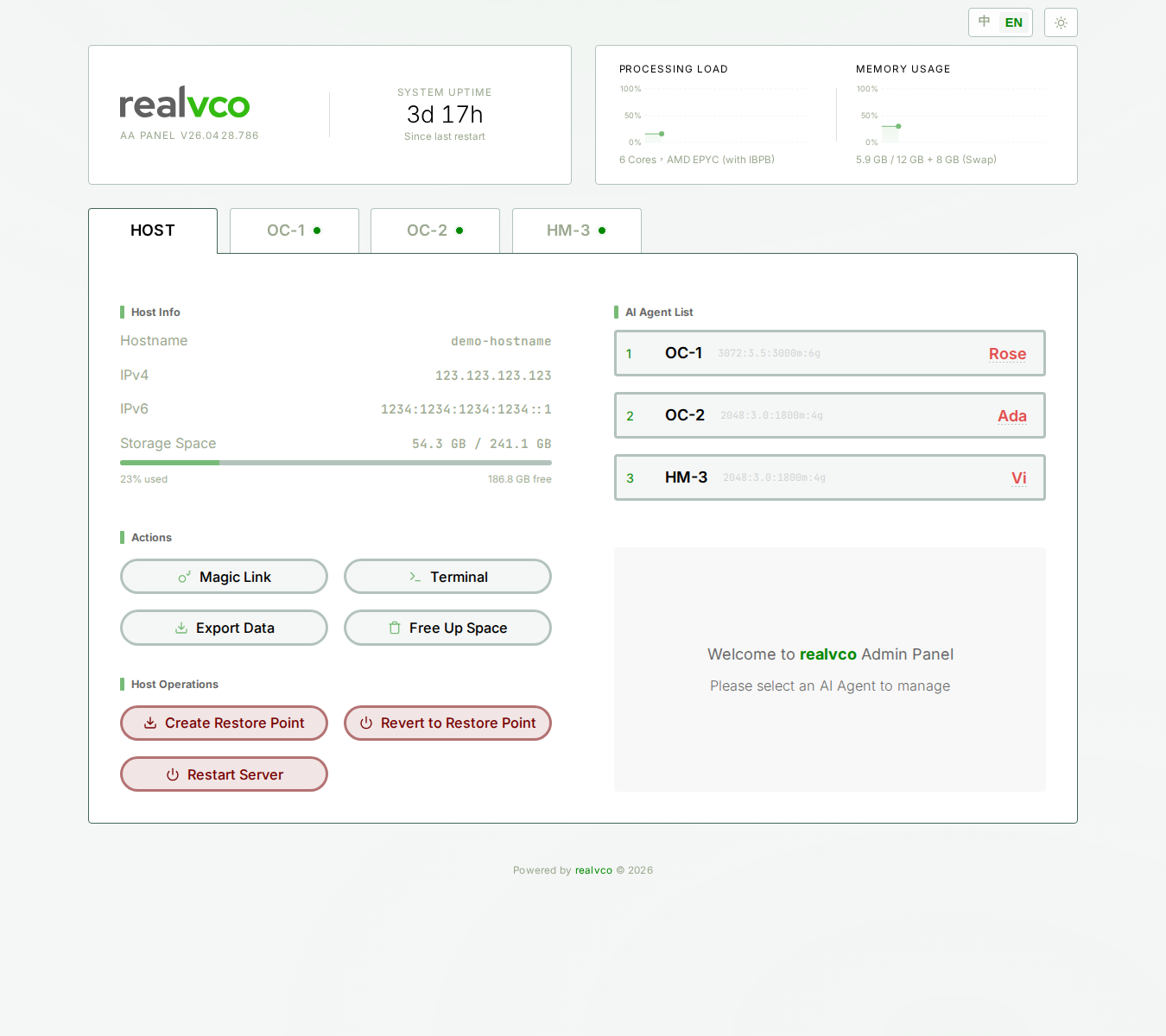
The 4 buttons at a glance
| Button | Function | Best for |
|---|---|---|
| Magic Link | Generate a 5-minute, single-use login link | Family / coworker temporary access |
| Terminal | Open a host shell in the browser (root) | Advanced users; non-tech can skip |
| Export Data | Export conversations / settings / user data as a bundle | Advanced users |
| Free Up Space | Clean unused Docker images, containers, cache | Advanced users; when storage > 85% |
Magic Link
What it does
A 5-minute, one-time login link. Send it to someone → they click and instantly land in your admin-panel — but they don’t get your long-lived token.
When to use: family checking machine status, customer service helping debug, coworker viewing screen during a meeting.
How to use
- Click Magic Link
- Copied to clipboard immediately (no dialog) — top-right shows a “Copied” toast
- Paste it in a messenger (Telegram / Email / Slack)
- They click within 5 minutes → auto-login
- After login, they get a 30-day cookie — won’t need Magic Link again during that time
Notes
- A Magic Link is one-time only. After they click, the link is dead
- 5 minutes is fixed (security tradeoff)
- Don’t paste in public channels — anyone clicking within 5 minutes can log in
- Generating 5 Magic Links without using them — only the latest one works
If you see “Copy failed”: usually a browser clipboard permission issue. Refresh and try again.
Terminal
What it does
Opens a host-level shell (root) right inside admin-panel. Same as SSH-ing in but without opening a terminal app.
When to use: read logs, run system commands, debug.
⚠️ Advanced: this is host root — every command takes effect immediately. Don’t type if you’re unsure.
Export Data
What it does
Exports your conversations, settings, user data on this host into a single download file.
When to use: migrating to a new host, long-term archive, compliance.
How to use
- Click Export Data
- Confirmation dialog → confirms — packaging starts in background (a few minutes for large data)
- Browser auto-downloads when ready
Free Up Space
What it does
Cleans unused Docker images, stopped containers, cache layers. Won’t touch running containers, conversation history, or settings.
When to use: storage > 85%, failed upgrades leaving stale images.
How to use
- Click Free Up Space
- Confirmation dialog — shows how much space will be freed
- Confirm → cleanup runs (10-30 seconds)
- After: Host Info Storage Space number drops
Related
- HOST tab overview — 4-section map
- Host Info section — Where to see storage
- Host Operations section — Restore points / restart live here