

Platform Connection
Each AI agent settings sub-tab has a “Platform Connection” panel on the right side listing 5 external messaging platforms + 1 built-in Web UI.
Where to find
OC-1 (or OC-2, HM-3) tab → Settings sub-tab → right column Platform Connection
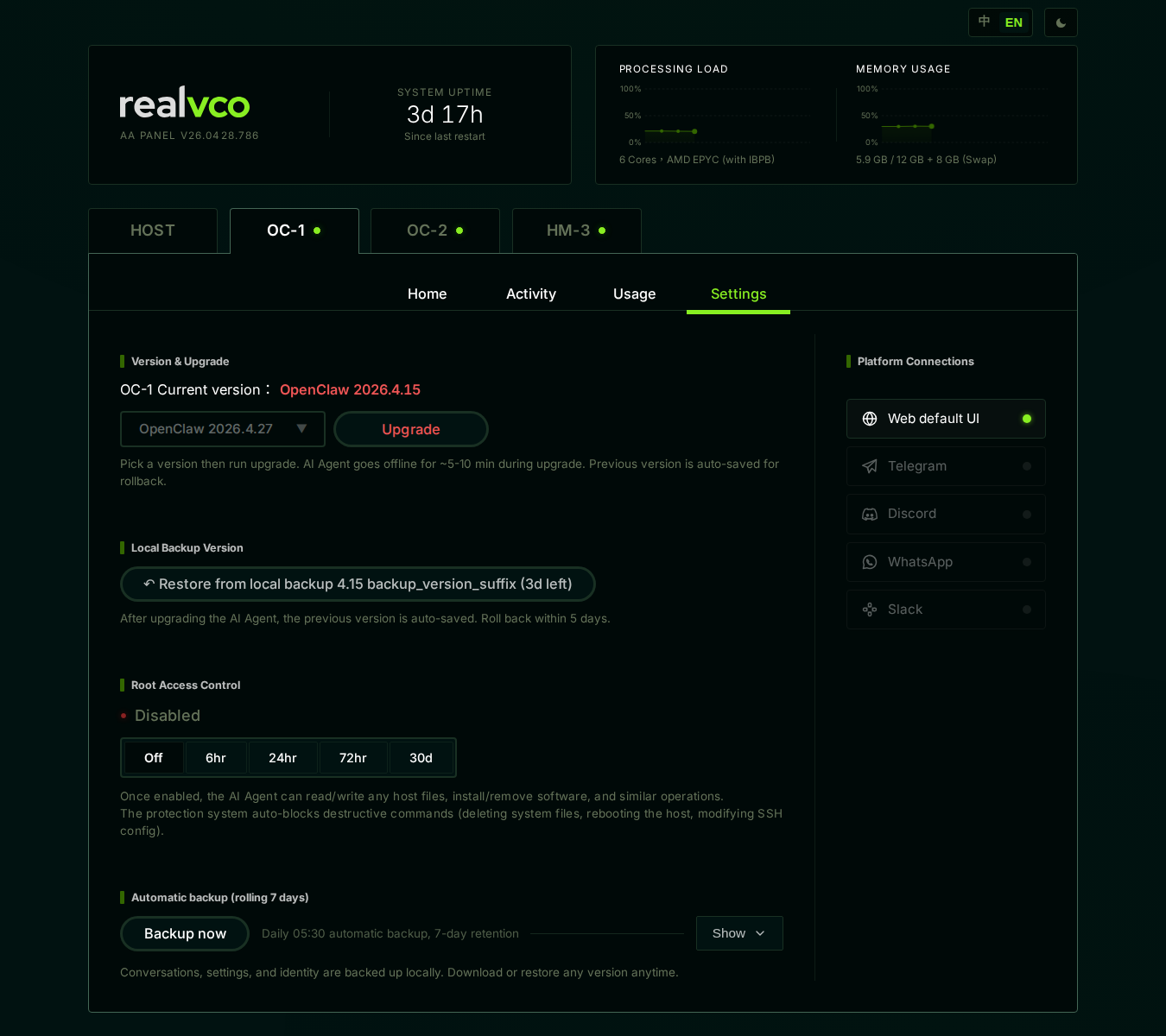
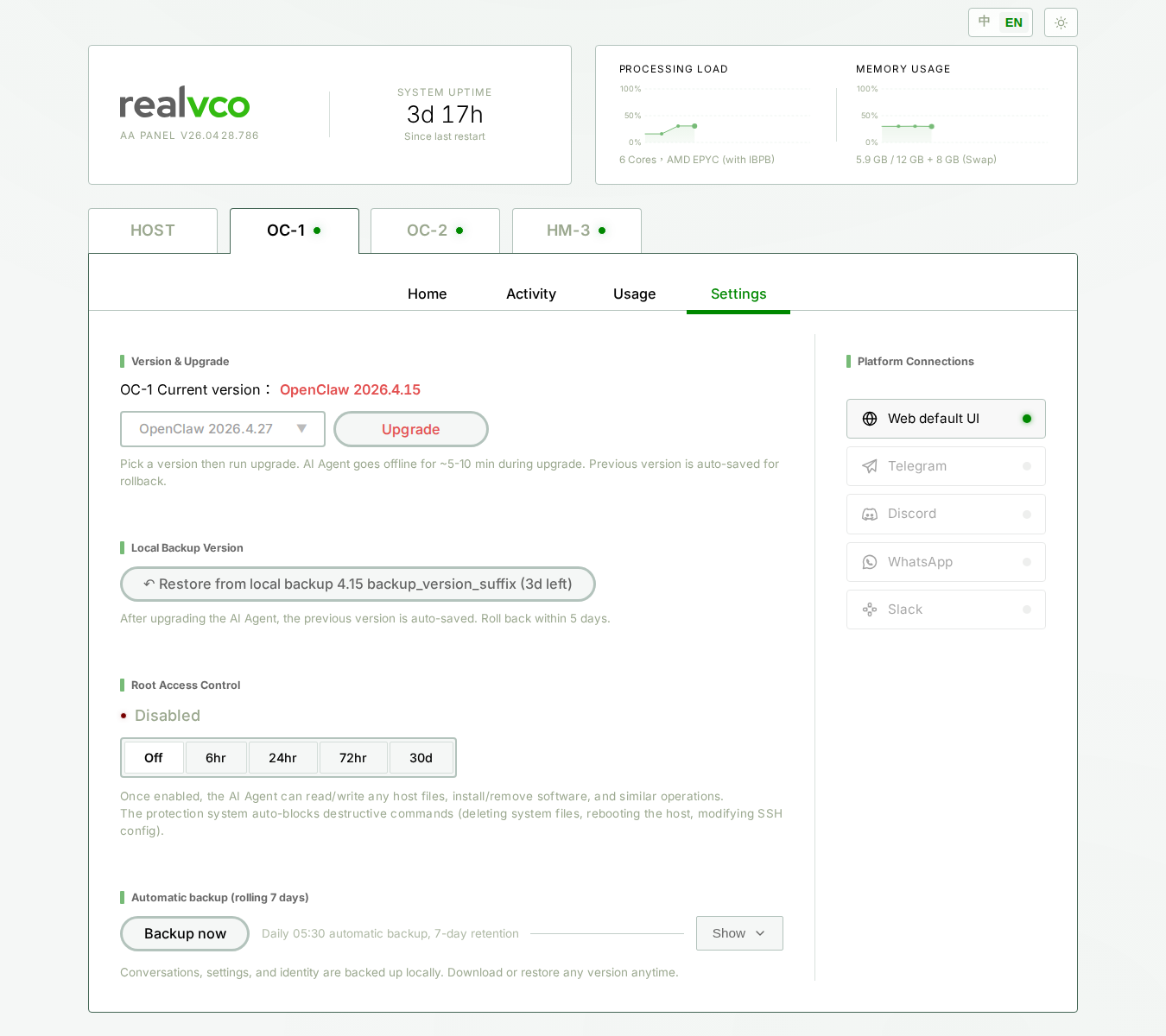
5 platforms + 1 Web UI
| Entry | Default state | What it is |
|---|---|---|
| Web default UI | Enabled by default (connected) | The OpenClaw UI / Hermes UI chat interface from Home sub-tab |
| Telegram | Disconnected | Largest customer messenger |
| Discord | Disconnected | Community / team chat |
| Disconnected | Business customer chat | |
| Slack | Disconnected | Workplace |
General flow to enable a platform
Each platform connection takes two steps:
- On the external platform: register a bot / app, get a token / API key
- In admin-panel Platform Connection panel: paste in the token, click connect
Step 1 details vary per platform — Telegram uses BotFather, Discord requires registering an application, WhatsApp goes through Meta dev portal, Slack workspace settings, etc. See each platform’s official docs.
Step 2 is almost the same for all platforms:
Step 1: click the entry
E.g. want to connect Telegram → click the Telegram entry → settings panel opens.
Step 2: paste token / API key
Paste the token from the external platform into the input field.
Step 3: click “Connect” / “Save”
Admin-panel will:
- Validate token (5-10 sec)
- Set up webhook (if platform supports)
- Show “Connected” + green light
Step 4: test
Go back to that platform (e.g. open the Telegram bot), send a message → AI agent should reply within 1-3 seconds.
What you should see
| You see | Means |
|---|---|
| Entry shows green light + Connected | Connection successful, AI replies on this platform |
| Entry shows red light + Connection failed | Wrong token / platform API issue / network problem |
| Entry grayed out | Settings haven’t saved yet |
| Connected but bot doesn’t reply | Check Activity sub-tab for errors |
Multi-agent message routing
This admin-panel design: each AI agent manages its own platform connections. Meaning:
- OC-1’s Telegram connects to token A → that bot routes to OC-1
- OC-2’s Telegram connects to token B → that bot routes to OC-2
- HM-3’s Telegram connects to token C → that bot routes to HM-3
The same Telegram bot cannot be connected to multiple AI agents — one token binds one agent.
To route messages (e.g. customer service vs internal reports go to different bots): get multiple bot tokens, assign to different AI agents.
How to disconnect / change token
- Disconnect: click the entry → find “Disconnect” (or “Remove Connection”) → confirm
- Change token: disconnect first, then reconnect with new token
After disconnect, admin-panel clears the platform’s webhook registration; external platform won’t forward messages anymore.
Safety reminder
A token is the highest privilege on the corresponding platform. E.g. a leaked Telegram bot token = someone can impersonate your bot.
- Don’t paste tokens in public channels, forums, public Slack channels
- If unsure whether to use → don’t connect
- After connecting, keep the original token (the platform may also store one) so you can revoke if leaked
Related
- Home sub-tab — Web default UI entry point
- Activity sub-tab — See messages after connecting
- Settings sub-tab overview — 5-section map