

Host Operations section
The third section in the HOST tab’s left column. 3 red buttons for 3 critical actions affecting the entire host.
Red = high risk = always shows a confirmation dialog.
Where to find
HOST tab → bottom-left → Host Operations section
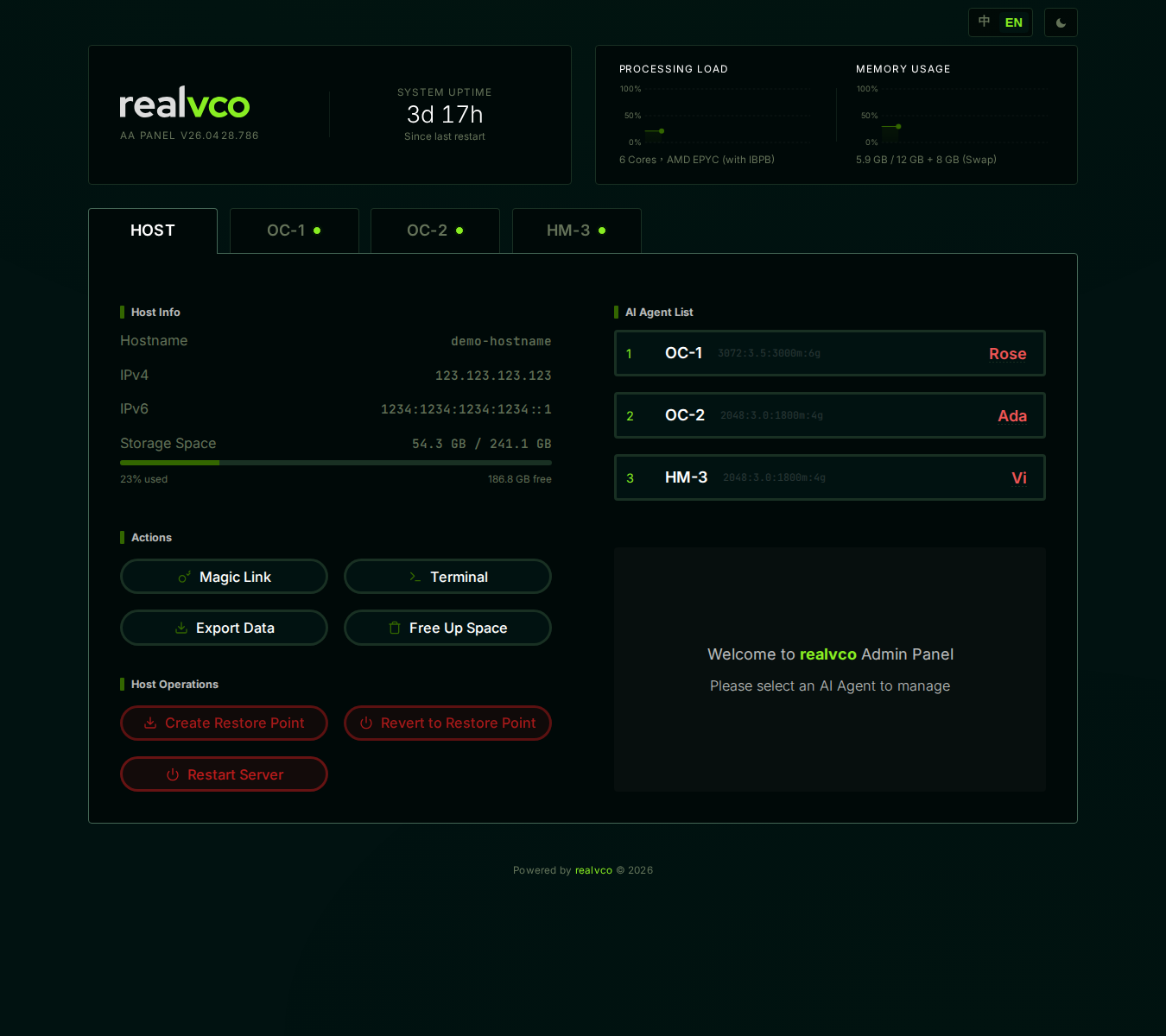
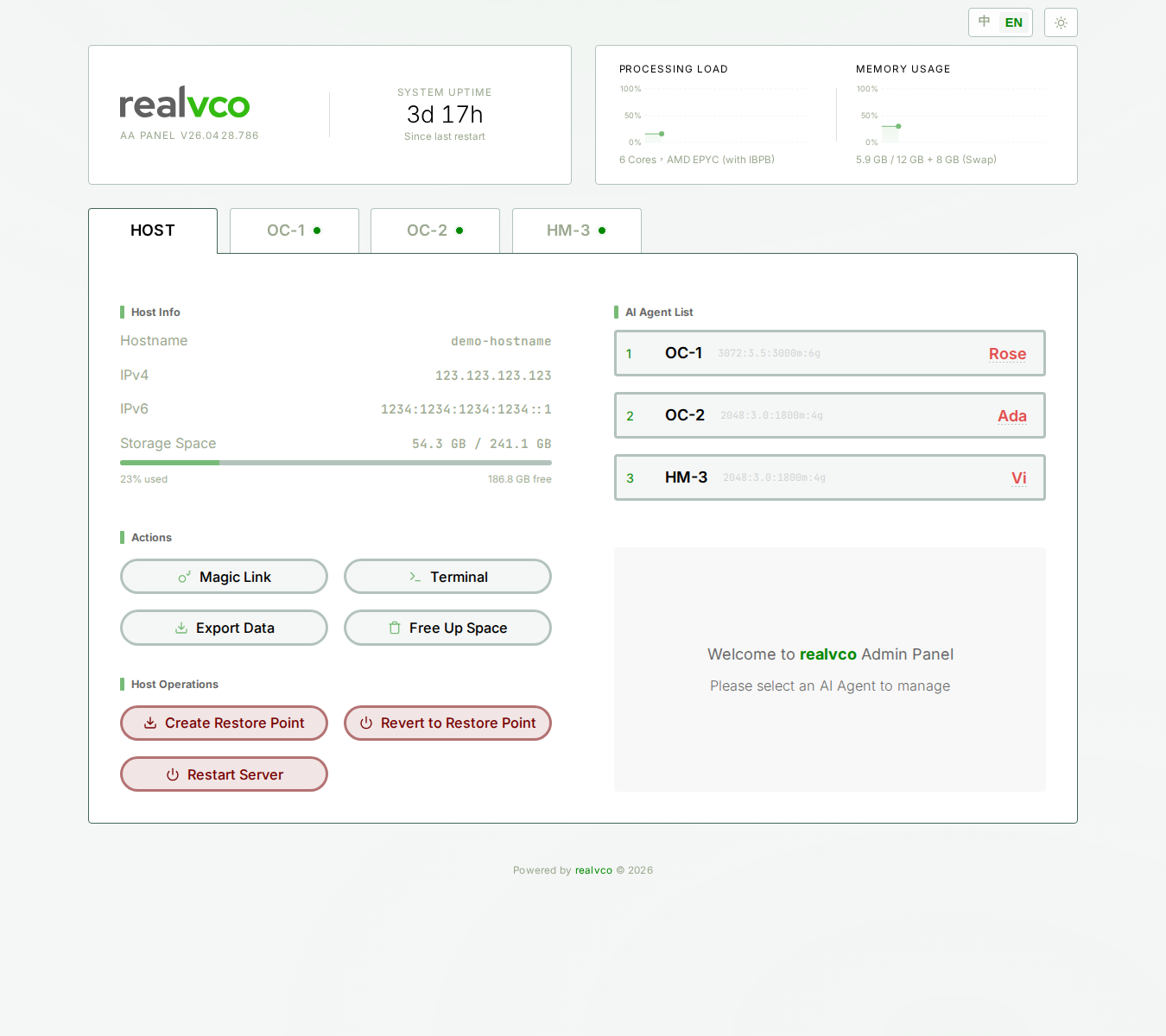
The 3 buttons at a glance
| Button | Function | When to use |
|---|---|---|
| Create Restore Point | Snapshot the entire machine, can rollback later | Before big changes / before upgrades / experimenting |
| Revert to Restore Point | Roll back the entire machine to last snapshot | Failed upgrades / settings broke something / accidentally deleted important files |
| Restart Server | Reboot the entire VPS | System anomalies / memory leaks / kernel-level setting changes |
Create Restore Point
Host restore point = a snapshot of the entire machine at a moment. Includes OS state, all files, current settings and conversations of all AI agents.
How to do it
-
Click Create Restore Point (red button)
-
Confirmation dialog — says “will overwrite previous restore point” + must check confirm box
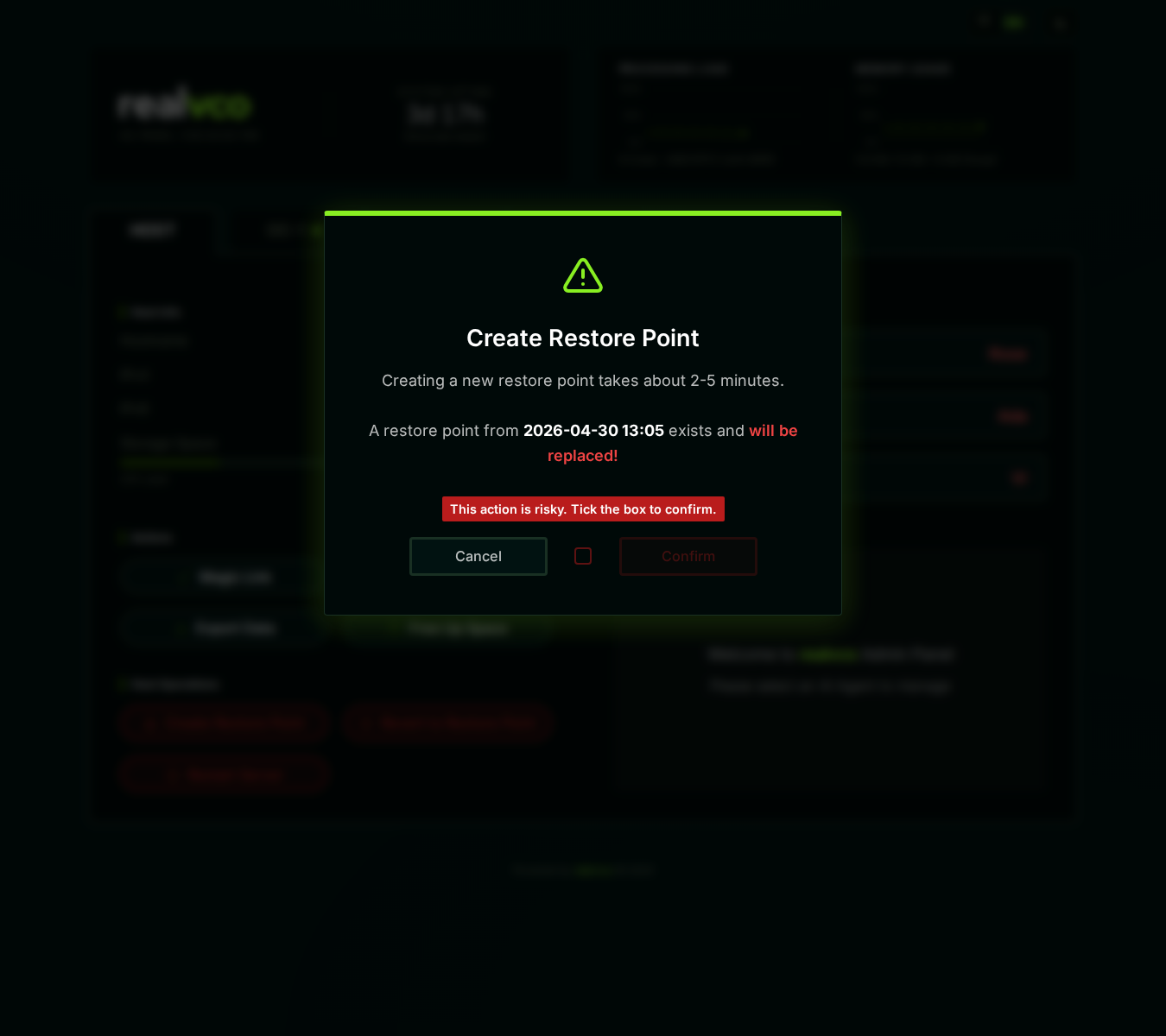
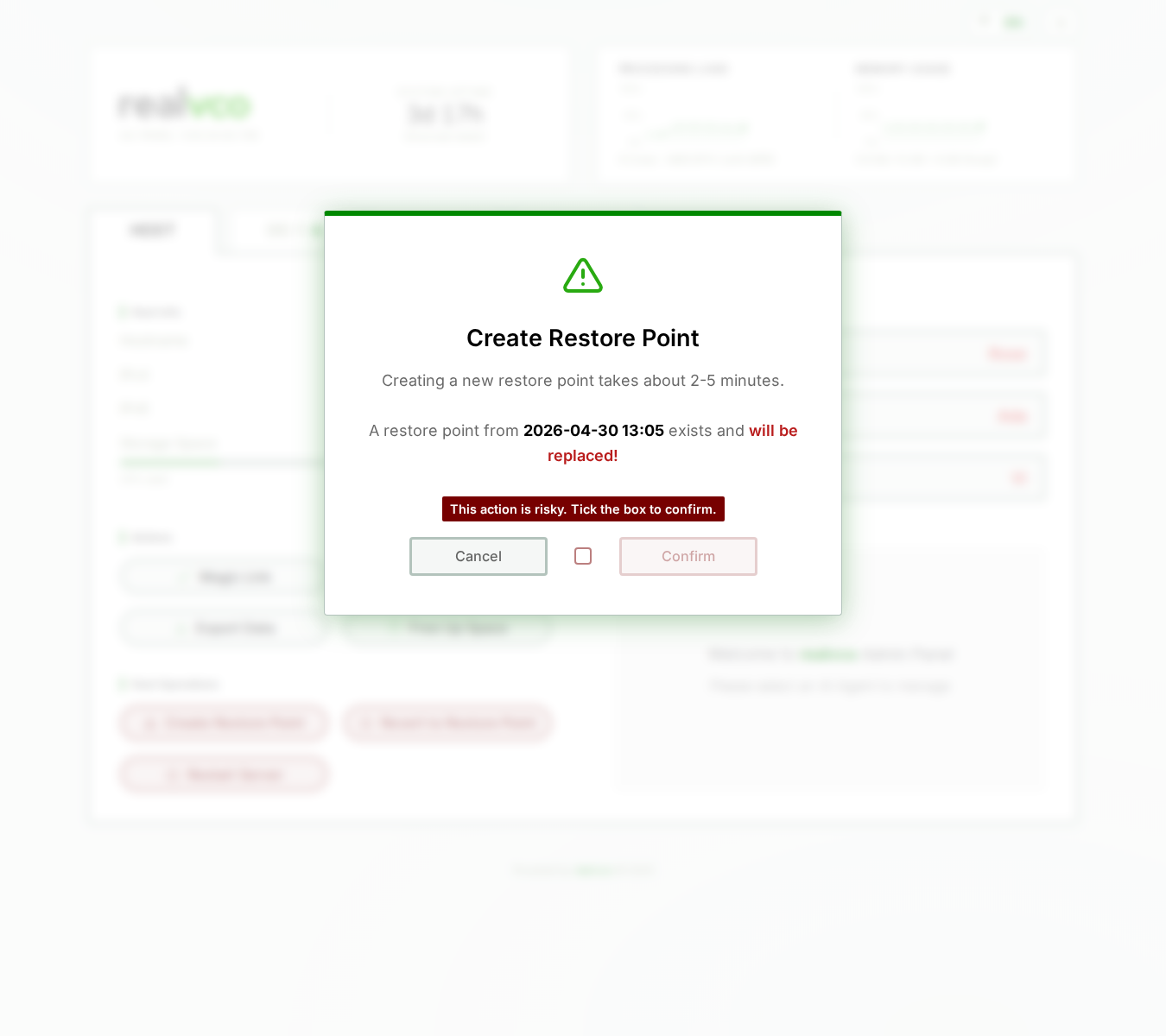
Must check the agreement box before clicking Confirm -
Check + click Confirm
-
Wait 2-5 minutes (snapshot in background)
What you’ll see
- After: previous restore point time updates to now
- Failure: dialog shows error reason
Only one restore point is kept. Each new one overwrites the old. If you want older versions:
- Use Export Data to download conversations and settings locally first
- Then “Create Restore Point”
- Both backup mechanisms are complementary
vs Automatic Backup
| Property | Host Restore Point | Automatic Backup (AI agent settings) |
|---|---|---|
| Scope | Entire machine (OS + all AIs + all data) | Single AI agent’s conversations & settings |
| Trigger | Manual button click | Daily 05 auto |
| Retention | 1 (latest only) | 7-day rolling |
| Detail | This page | Backup |
Revert to Restore Point
Revert = rewind the entire machine to a past moment.
⚠️ Irreversible: everything done after that moment (conversations, setting changes, files) is permanently lost.
Pre-flight checks
- Notify active users — conversations break, messages lost
- Backup what you want to keep — anything since the restore point will vanish
- Off-peak hours — 2-5 minutes downtime impacts work hours
- Confirm restore point time — the time at the top of dialog is what you’ll go back to
How to do it
-
Click Revert to Restore Point (red button)
-
Confirmation dialog:
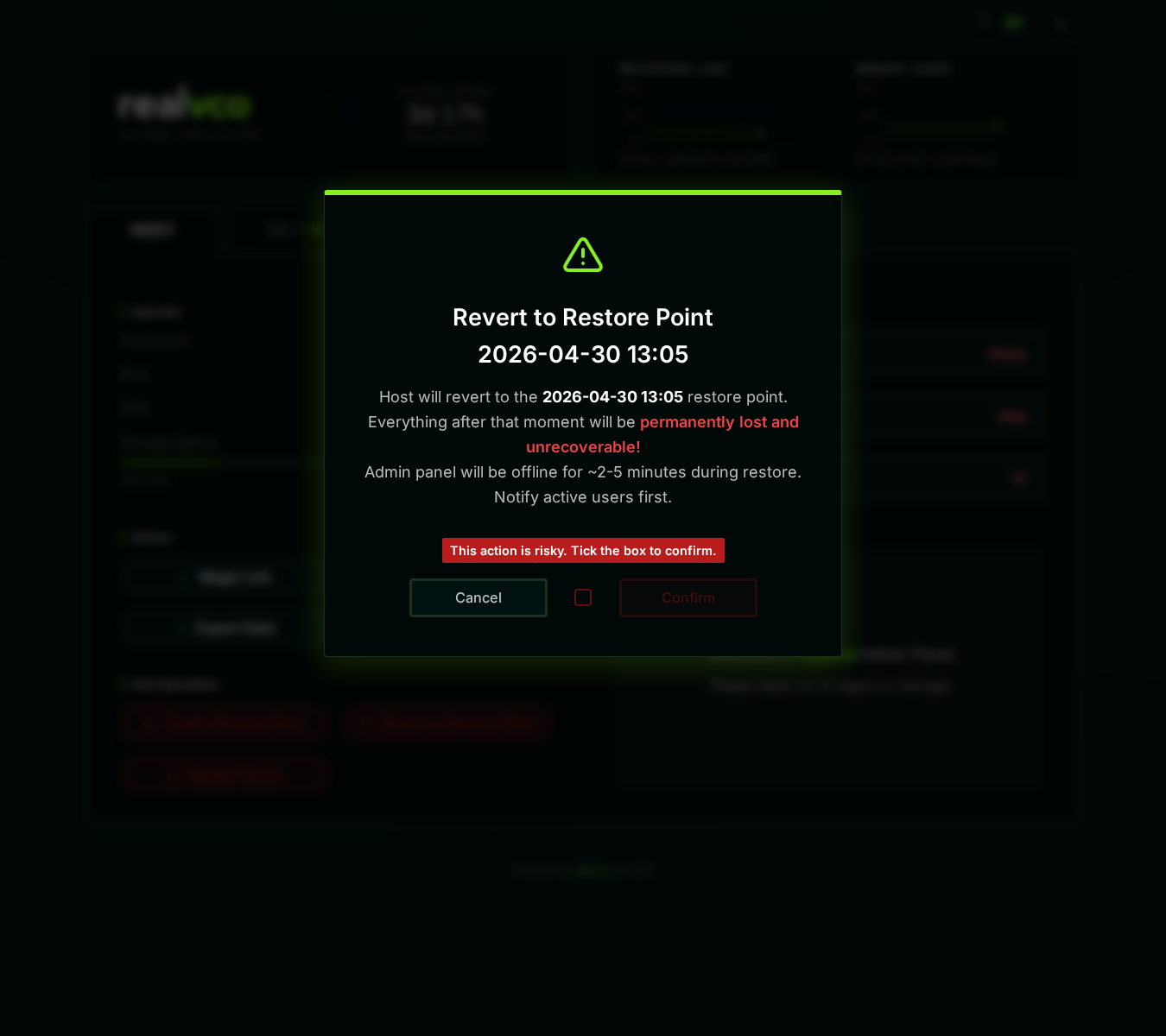
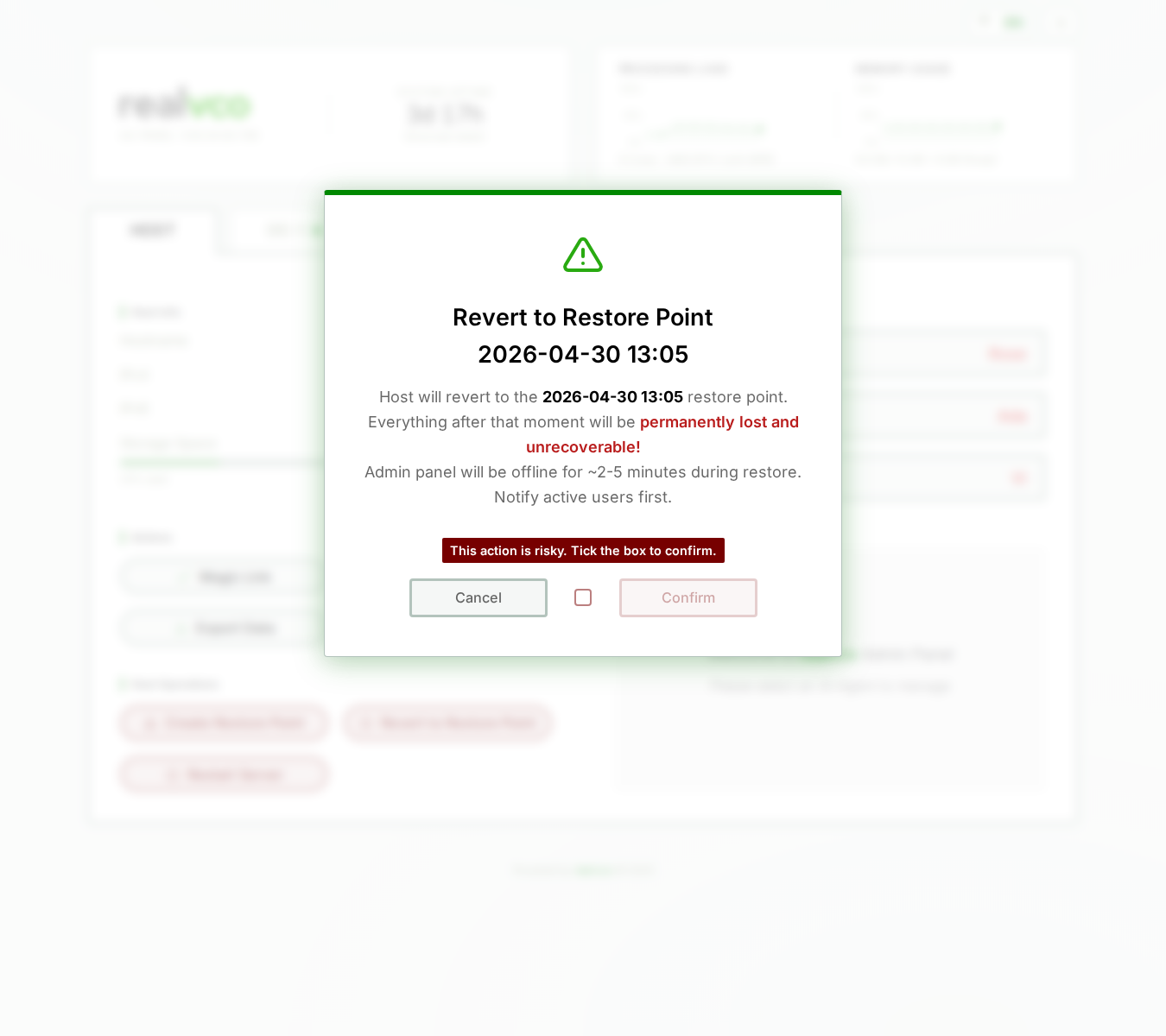
Red warning 'permanently lost' + checkbox required to confirm -
Dialog content:
⚠️ Revert to Restore Point
2026-04-30 07:05Host will revert to the
2026-04-30 07:05restore point. Everything after that moment will be permanently lost and unrecoverable!Admin Panel will be offline for ~2-5 minutes during restore. Notify active users first.
🔴 This action is risky. Tick the box to confirm.
-
Check + click Confirm
-
Wait 2-5 minutes (admin-panel goes offline)
-
Refresh → back to normal screen = rollback successful
When there’s no restore point
If you never Create Restore Point’d before → Revert to Restore Point has nothing to roll back to. Dialog will say “no restore point available” (or button is disabled).
Build the habit: before any major change, click Create Restore Point first.
Why so many safeguards?
Reverting affects the entire machine, unlike “delete a file” which has a Trash. 4 layers of safeguards:
- Red button (visual warning)
- Confirmation dialog (forces info review)
- Forced “what you’ll lose” preview (risk reminder)
- Required checkbox (prevents misclick)
Restart Server
Restart Server = reboot the entire VPS. All AI agents stop, all running conversations break, all Telegram / WhatsApp bots pause. About 1-3 minutes to recover.
Pre-flight checks
- Notify users — conversations break
- Confirm no critical tasks running — check each AI agent’s Activity sub-tab for “Running” scheduled tasks
- Off-peak hours
- Note the problem you’re solving — for post-restart verification
How to do it
-
Click Restart Server (red button)
-
Confirmation dialog:
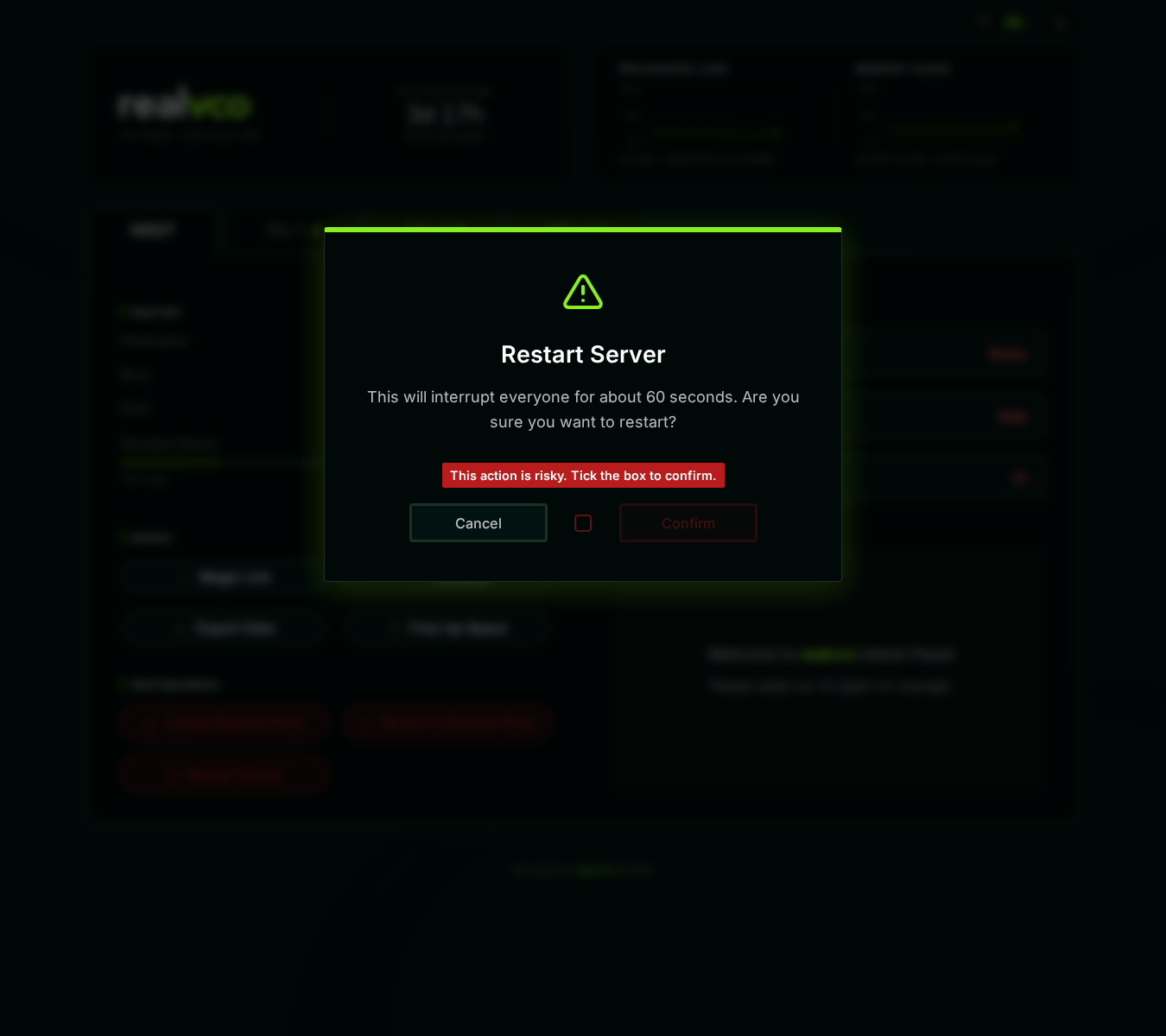
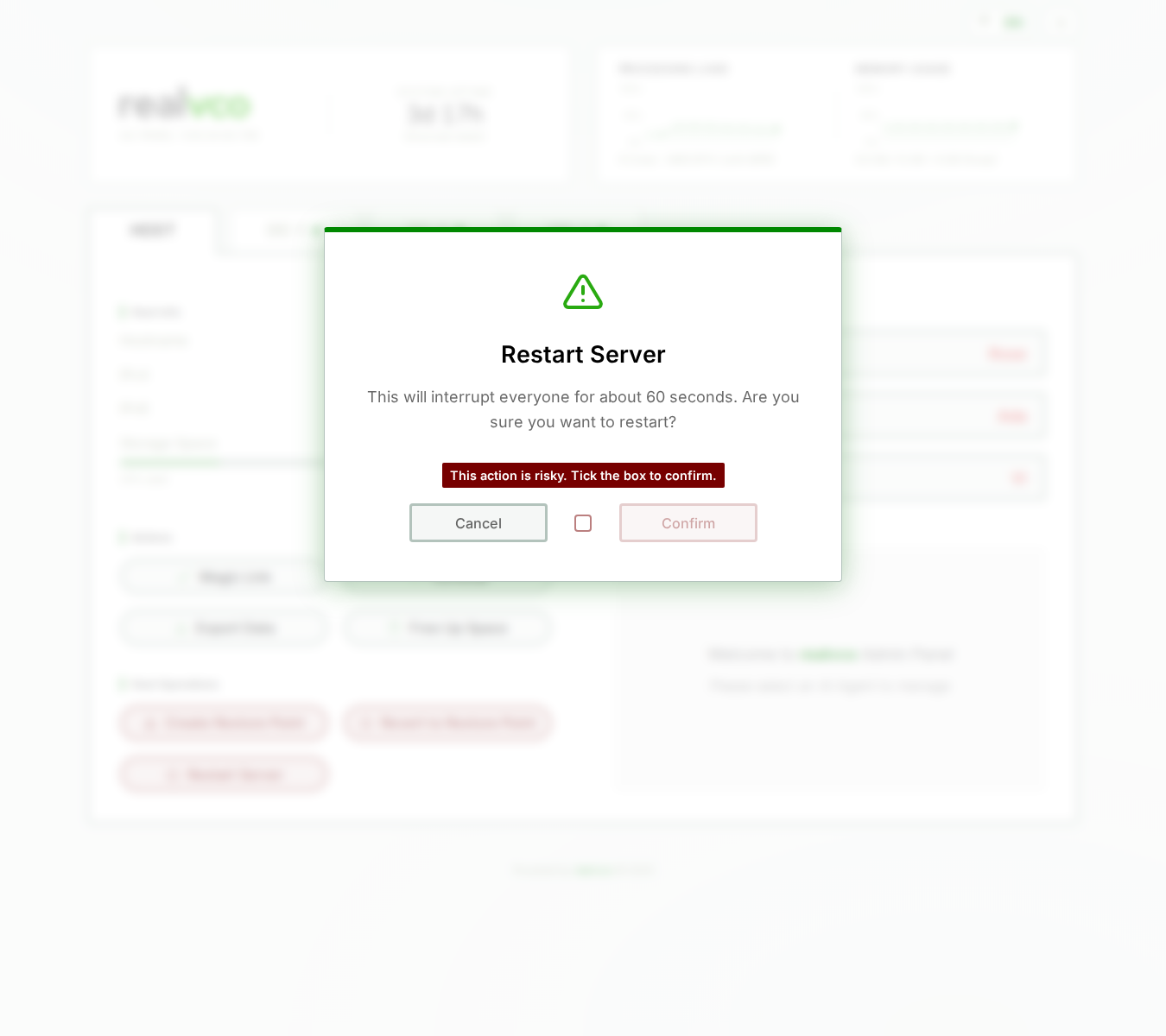
Must check agreement box before clicking Confirm to restart -
Dialog says: takes 1-3 minutes / all services interrupt / checkbox required
-
Check + click Confirm
-
Machine reboots — admin-panel becomes unreachable
Post-restart verification checklist
Re-open admin-panel and verify:
- HOST tab’s SYSTEM UPTIME resets to a small number (e.g. 1 min) → confirms restart
- AI Agent List all 3 agents show green light
- Each AI agent’s Home sub-tab shows “Running”
- OpenClaw UI / Hermes UI respond to chat
- Telegram / WhatsApp bots (if configured) send/receive normally
- The original problem you were solving: solved?
What restart can’t fix
| Problem | What to do instead |
|---|---|
| AI agent misbehaving after upgrade | Restore from local backup (within 5 days) |
| System broken after settings change | Revert to Restore Point (if you created one) |
| Storage full | Free Up Space |
| One AI agent unresponsive but others fine | That agent’s Home sub-tab → Pause → wait 5s → Resume |
How often to restart
Ideal: almost never. Linux machines running 30+ days without restart is normal.
But if you see:
- Memory > 90% sustained
- Reaction time obviously slow
- Memory leak in some service
…then a restart might help.
Related
- HOST tab overview — 4-section map
- Automatic Backup — AI agent-level safety net
- Local Backup Versions — One-click rollback within 5 days of upgrade