

Microsoft Teams setup
Microsoft Teams is the standard for enterprise internal collaboration. Hermes v0.12 ships native Teams support (via the new plugin mechanism), letting Vi join your company’s Teams workspace as an internal AI assistant.
Teams integration is Hermes-Agent only (Ada / Vi both come with Hermes-Agent and can connect to Teams). Rose (OpenClaw) cannot connect to Teams.
Flow Overview
① Microsoft 365 admin creates a Bot app                ← ~10 minutes
② Get three credentials from Azure / Teams Dev Portal  ← instant
③ Paste credentials into admin panel                   ← 30 seconds
④ Install the Bot to your Teams workspace              ← 1 minute
⑤ DM the Bot in Teams to start chatting                ← done!
Pre-requisites
You need:
- Microsoft 365 admin rights (regular employees can’t register Bots)
- Access to Teams Developer Portal or Azure Bot Service
- realvco admin panel login
- Vi (
hm-3container, Hermes v0.12 or later) on your host
Why admin rights are required: Teams Bots must be registered as an application under your company’s tenant — that’s a one-time IT action and a regular M365 account doesn’t have permission.
If you’re not the IT admin, forward this page to whoever is. Once they have the three credentials, hand them to you and you can finish the rest.
Step 1: Create a Bot in Teams Developer Portal
Go to Teams Developer Portal and sign in with your M365 admin account.
- Left sidebar Apps → + New app
- Name it
realvco-vi-assistant(or whatever you like) - Inside the app, Configure → Basic information:
- Short name: the user-facing name (e.g. “Vi Assistant”)
- Full name: full label
- App ID: auto-generated, save this
- Switch to App features → Bot → Create new bot
- The system will create a Bot and route you to Azure Bot Service
In Azure Bot Service, record three values:
| Value | Where |
|---|---|
| App ID (Microsoft App ID) | Bot detail page → Configuration |
| App Password (Client Secret) | Click “Manage Microsoft App” → Certificates & secrets → New client secret. Shown only once — copy immediately. |
| Tenant ID | Azure Portal → Microsoft Entra ID → Overview |
App Password is shown only once. Save it somewhere safe right after generation. If you lose it, you’ll have to generate a new one.
Step 2: Configure in admin panel
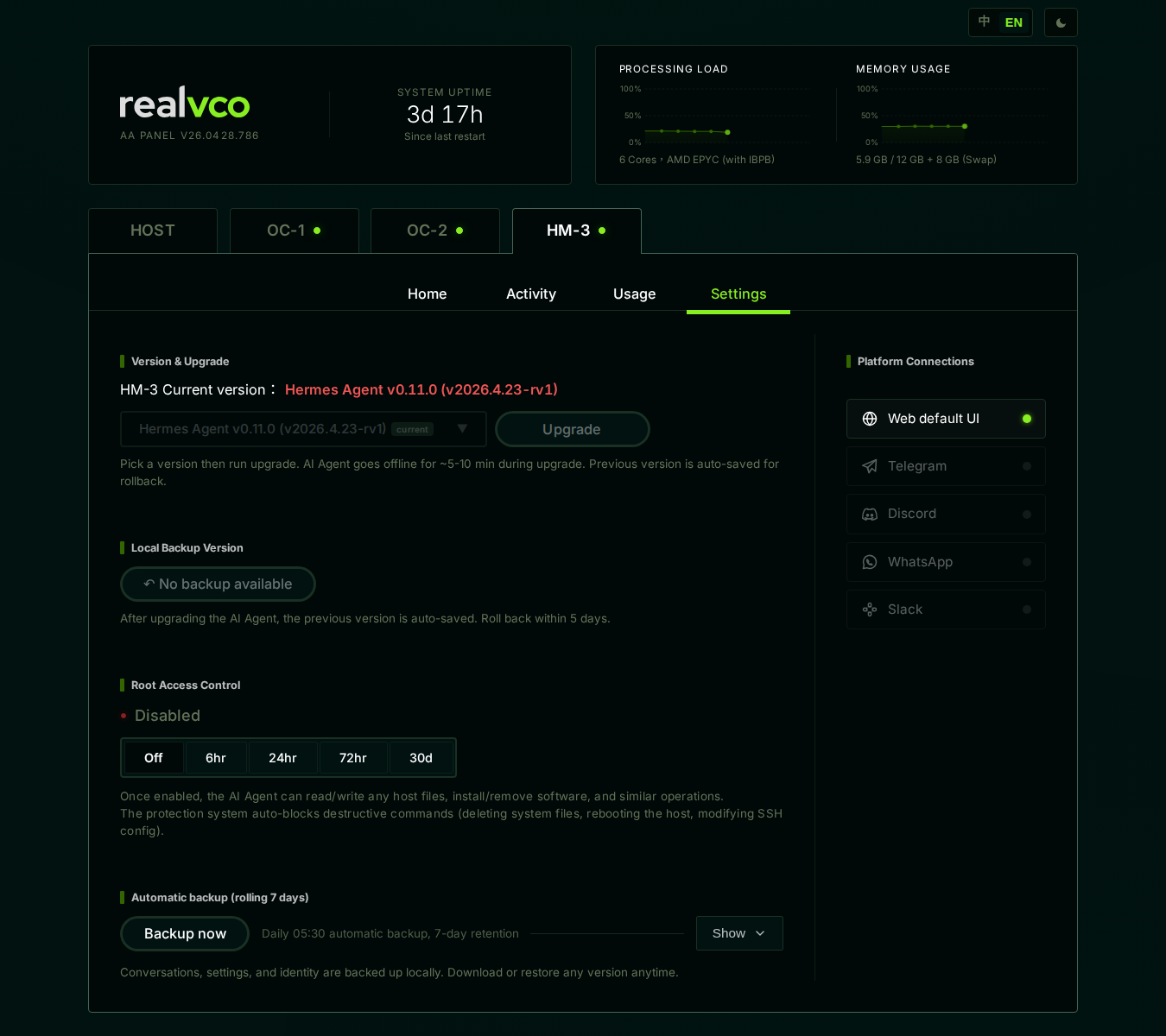
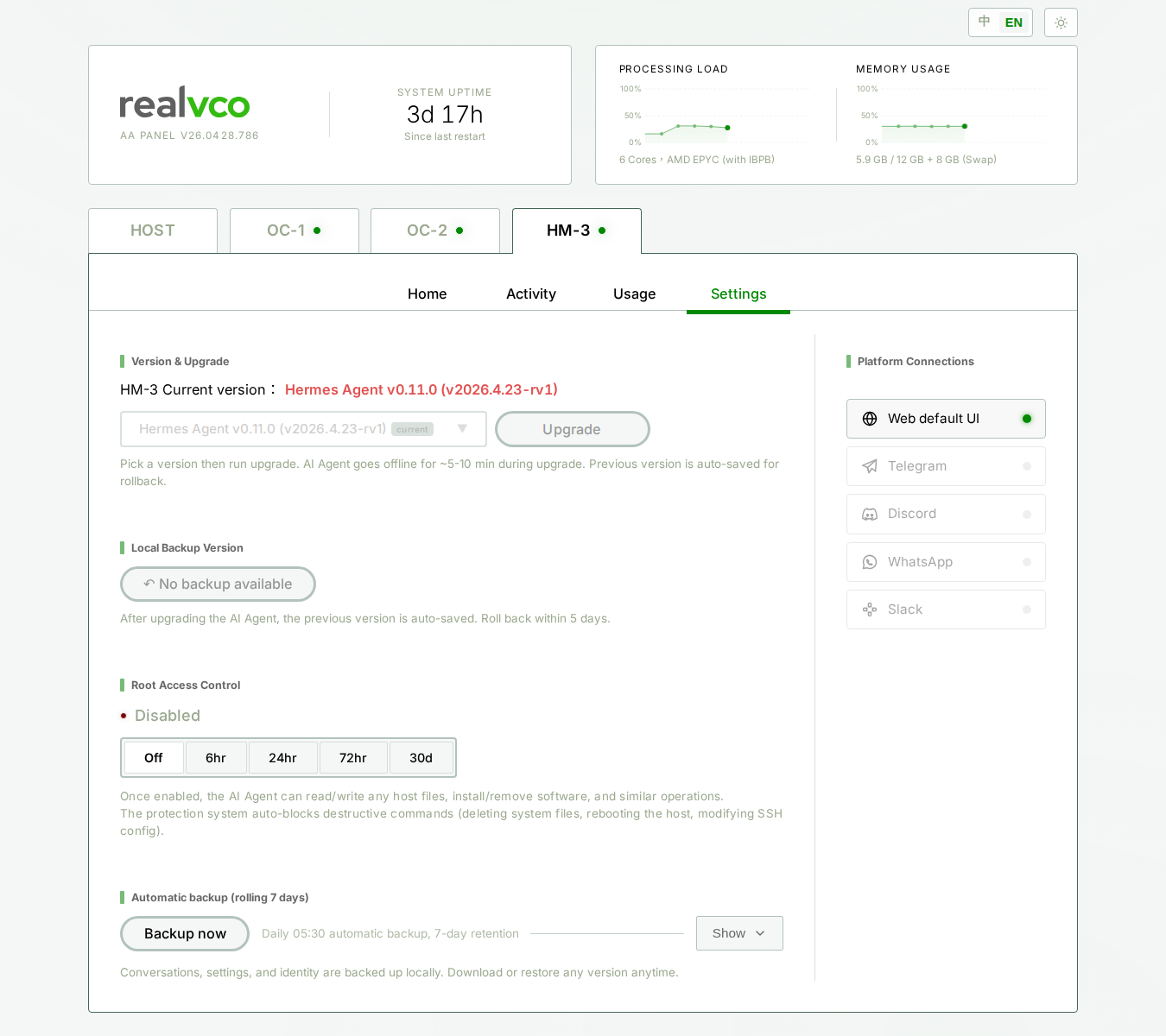
- Sign in to admin panel
- Switch to the hm-3 (Vi) container
- Settings → Messaging → Microsoft Teams
- Paste in:
- App ID
- App Password
- Tenant ID
- Click Save
The admin panel validates the credentials live. On success you’ll see:
- ✅ Bot Display Name
- ✅ Connection Status: Connected
- ✅ Tenant authentication passed
Common failure modes:
- App Password has expired or been revoked
- Tenant ID typo (should be a GUID)
- The Azure Bot’s Messaging endpoint hasn’t been opened (the v0.12 plugin handles this automatically, but if Azure has it manually locked, unlock it)
Step 3: Install the Bot to your Teams workspace
Back in Teams Developer Portal, find the app you just created:
- Publish → Publish to org (publish to your company tenant)
- Wait for the Teams admin to approve (if you’re the admin, you can self-approve)
- After approval, search the app name in the Teams app store and install
Faster shortcut: in Teams Developer Portal click Preview in Teams → install in your own Teams for testing immediately.
Step 4: Start chatting
In Teams, left sidebar Chat → search the Bot name (e.g. “Vi Assistant”) → click to start a private chat.
Vi will reply with a welcome message on first contact. Send any message to begin.
📷 The Teams chat window is native Teams UI — once the Bot is installed, search the bot name in the Teams Chat sidebar to open it.
Advanced configuration
Adding the Bot to Teams channels (groups)
To add the Bot to a Teams channel:
- Channel settings → Manage channel → Apps → add Bot
- By default the Bot only replies when
@mentioned
To make the Bot reply to every message, ask Rose (or change it directly in admin panel):
“Please set Vi’s Teams channel XXX to reply without requiring @mention”
Allowlist (who can use it)
By default, anyone in the Teams workspace can DM the Bot. To restrict:
“Please limit Vi’s Teams to these three emails only: a@company.com / b@company.com / c@company.com”
Media support
Vi on Teams supports:
- ✅ Text messages
- ✅ Attached files (PDF / Word / Excel — auto-parsed)
- ✅ Images (auto-analyzed)
- ✅ Adaptive Cards (interactive card replies)
- ✅ @mentions (both DM and channel)
- ❌ Video calls (use the Google Meet integration instead)
FAQ
The Bot doesn’t reply
- Confirm credentials: admin panel’s Teams settings page should show “Connected”
- Confirm Bot is approved in your Teams workspace: check the Teams admin console
- Check Vi container status: admin panel → hm-3 → Home → container should be Running
- Check activity log: admin panel → hm-3 → Activity → see if messages arrived
- Restart the container: admin panel → hm-3 → Restart Container
admin panel shows “Connection Status: Failed”
Most common causes:
- App Password expired: Azure Portal → your Bot app → Certificates & secrets → check expiry. Re-generate and update the admin panel.
- Wrong Tenant ID: Azure Portal → Microsoft Entra ID → Overview, confirm it’s the company tenant.
- Bot app permissions missing: Azure Bot Service → Configuration, confirm Messaging endpoint isn’t locked.
My company IT won’t grant admin rights
Fall back to Telegram or Slack — both can create Bots with personal accounts and don’t need IT involvement.
If you really need Teams, you can also use a personal Microsoft account + personal Teams (no company tenant), but only you will be able to use it.
Can one Vi connect to multiple Teams workspaces?
Yes. Vi is multi-tenant: just add multiple sets of Teams credentials in admin panel, one per workspace.
Removing the Teams integration later
admin panel → hm-3 → Settings → Messaging → Microsoft Teams → click Disconnect. The Bot stops responding in Teams; you can also uninstall the App from your Teams workspace if you want.
Next
- Tencent Yuanbao setup — for serving customers in Greater China
- Telegram setup — personal / customer support
- Messaging overview — all 19 supported platforms
- Vi configuration guide — persona and tools